
Every agent, one record
Each change in your folders, with the program that made it and the AI agent behind it, grouped into sessions you can read at a glance.
FileSquirrelAI watches the folders you choose on your Windows PC, shows which AI agent changed each file, and undoes an agent's whole session with one click. Claude, Codex, Cursor, Copilot: one record, one undo.
Version 0.10.0 Beta · Windows 10 or 11 (64-bit) · free during the beta · by DistillAI
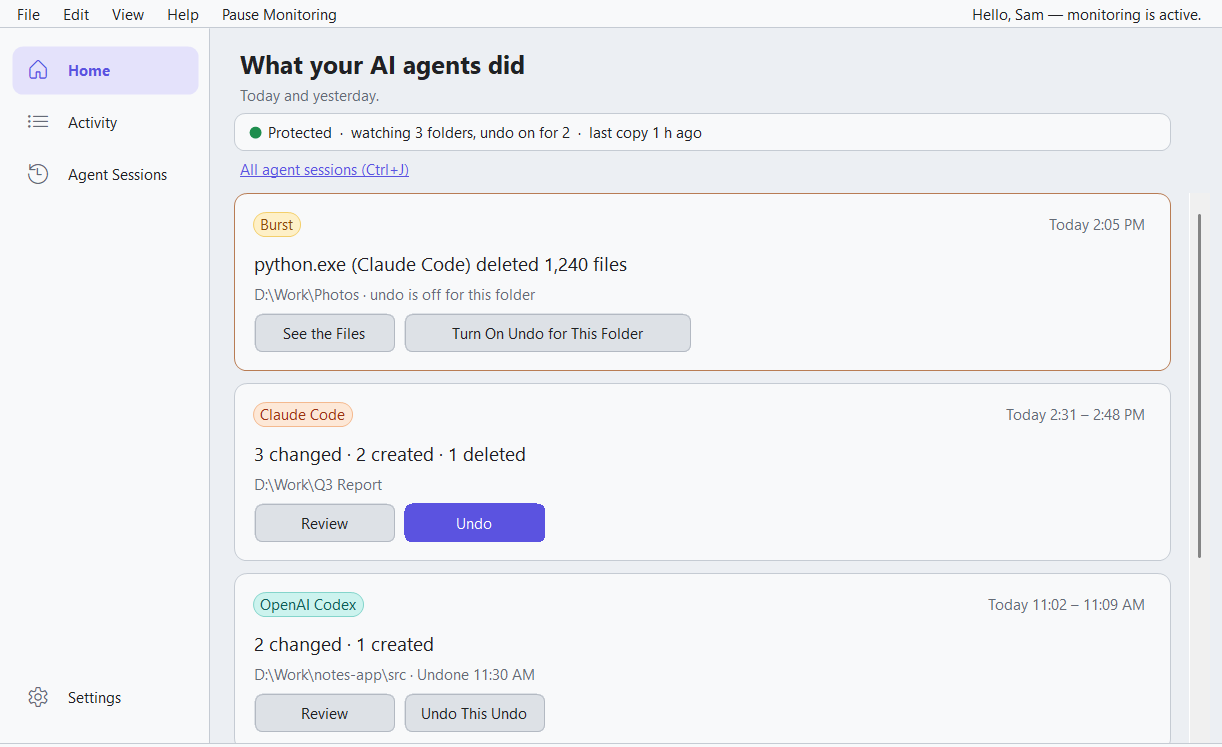
An agent can rewrite a report, delete a folder or "tidy up" a project in seconds, across dozens of files. FileSquirrelAI keeps the record and the copies you need to see what happened and put it back.
Each change in your folders, with the program that made it and the AI agent behind it, grouped into sessions you can read at a glance.
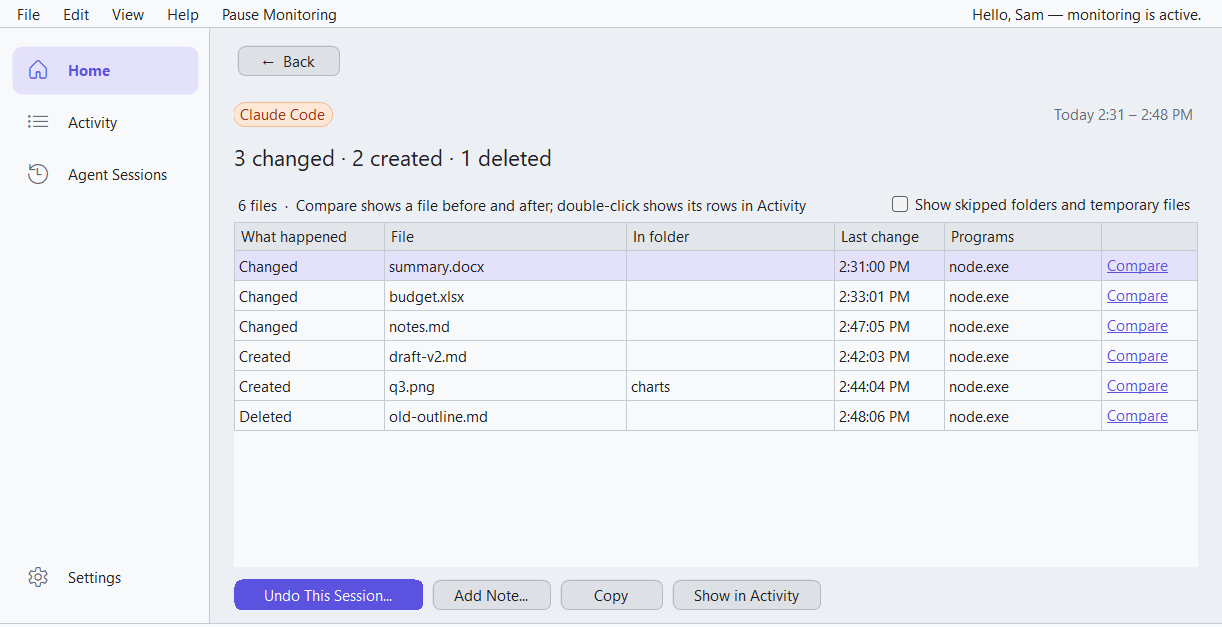
See every file first, untick what you want to keep, and put the rest back. Files the agent created go to the Recycle Bin. Changed your mind? Undo the undo.
No account, no cloud. The log and the copies stay on your computer, within limits you set.
Click Review on a session to see every file it touched: what changed, what was created, what was deleted. Compare any text file before and after, side by side. Then undo the session, or just part of it.
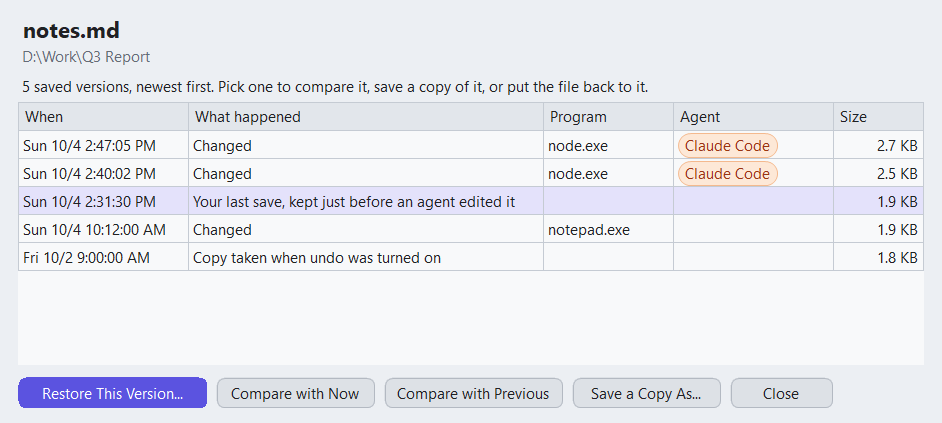
Right-click any file for its history: every version FileSquirrelAI kept, with who changed it. Compare one with the file now, save a copy of it, or restore it. Connected to Claude Code or Codex, it even keeps your last save from just before the agent edited.
FileSquirrelAI runs in the tray and records as your agents work. You hear from it when something deserves a look.
Home says Protected when everything is working, and tells you plainly what to do when it isn't.
One alert when a program deletes, renames or changes hundreds of files in seconds: a runaway agent or script.
Connect Claude Desktop and ask "what did the agent change today?". It reads the log; it never sees file contents.
FileSquirrelAI recognizes these out of the box, and you can add your own in Settings.
In an editor with a built-in AI (Cursor, Windsurf, VS Code), a change is shown as "you or its agent": it can't tell whose typing it was.
Setup takes a minute, and a short tour shows you around. Help, Take the Tour shows it again any time.
Pick the folder your AI works in. Setup turns on undo for it and offers to connect Claude Code, Codex and Claude Desktop.
Use it as usual. Each session shows up on Home as a card: which agent, when, what changed and where.
Click Review, compare a file, and try Undo This Session. Nothing changes until you confirm, and the undo can be undone.
FileSquirrelAI has no account and sends nothing anywhere. Here is exactly what it keeps, and where.
C:\ProgramData\FileSquirrel on your PC.The installer and the programs are signed by DistillAI. Because FileSquirrelAI is new, Windows SmartScreen may still say "Windows protected your PC" until it builds a reputation: choose More info, check that the publisher is DistillAI, then Run anyway. If the publisher isn't DistillAI, don't run it, and tell us.
No. It keeps recent versions of files that change, for a few days, on the same PC, so you can undo what an agent did. Keep your usual backups.
No. It can only put back what it kept, so undo works for sessions after undo was turned on for that folder. Setup turns it on for your first folder; add more in Settings, General (the Snapshots column).
Up to 2 GB and 7 days by default, which you can change in Settings, Snapshots. Copies are compressed and identical files are stored once. Files over 25 MB, large media and archives, and folders like .git, node_modules, bin and obj are skipped.
It's built to stay out of the way: Windows tells it when files change, and it copies only changed files in folders with undo on. If you notice anything, please tell us; that's what the beta is for.
Claude Code, Claude Desktop, OpenAI Codex, Cursor, Windsurf, GitHub Copilot, Gemini CLI and Aider out of the box, and any program you add in Settings, Agents. Changes made by programs without an agent are recorded too; they're in Activity.
Windows Settings, Apps, Installed apps, FileSquirrelAI, Uninstall. It asks whether to keep your log and copies, and takes its connections to Claude Code, Codex and Claude Desktop back out.
You're one of a small group trying FileSquirrelAI before its release. Use it for a few weeks and tell us what saved you, what confused you and what annoyed you. As thanks, every tester gets a free FileSquirrelAI Pro license for version 1.
In the app, Help, Send Feedback opens an email with what we need to look into a problem. Or write to us directly.
beta@filesquirrelai.com
Beta software: please keep your usual backups.